


Channel Settings Explained: Manage Your Property's Booking Rules, Pricing & Availability from One Place
The Channel Settings feature allows hosts using the Homeyhuts Channel Manager to manage booking restrictions, pricing preferences, and platform-specific settings from one centralized dashboard. Easily configure stay requirements across all OTAs, customize Airbnb settings, and manage Homeyhuts booking preferences without switching between multiple platforms.
The Channel Settings feature gives you complete control over how your property is listed across your connected booking channels.
Instead of managing settings separately on each OTA, you can update important booking restrictions, pricing preferences, and platform-specific configurations directly from your Homeyhuts dashboard.
Note: Channel Settings are available only for properties connected to the Homeyhuts Channel Manager.
How to Access Channel Settings
To open Channel Settings:
- Open the Menu
- Go to Host Control Centre
- Select Calendar
- Choose the property you want to manage
- Scroll down and click Channel Settings
You'll find three sections:
- Settings for All OTAs
- Airbnb Settings
- Homeyhuts Settings
Settings for All OTAs
These settings apply across all booking platforms connected through the Homeyhuts Channel Manager.
Minimum Night Stay
Control the minimum number of nights guests must book.
For example, during weekends or public holidays, you can require guests to book at least two nights instead of one.
Using Bulk Update, simply:
- Select your date range
- Choose applicable days
- Enable Minimum Night Stay
- Enter the required number of nights
- Click Update
The restriction is automatically applied across all connected OTAs.
Maximum Night Stay
Limit the maximum number of nights guests can book.
By default, this value is 0, which means there is no maximum stay restriction.
Any value greater than zero will limit the maximum number of nights a guest can reserve.
This is especially useful during peak seasons when you want to maximize availability for more guests.
Important: Minimum and Maximum Night Stay restrictions may not appear on the Airbnb host calendar, but they are correctly enforced for guests during the booking process.
Airbnb Settings
Once your Airbnb listing is connected to the Homeyhuts Channel Manager, several listing settings can no longer be edited directly on Airbnb.
Instead, you can manage them from this section.
Changes made here affect only your Airbnb listing.
Availability Settings
Configure:
- Booking Window
- Advance Booking Availability
- Maximum Stay Duration
Price Settings
Manage Airbnb-specific pricing including:
- Cleaning Fee
- Extra Guest Fee
- Guest Capacity
- Discounts
- Pricing Preferences
Booking Settings
Customize how guests book your property.
Update:
- Cancellation Policy
- Check-in Time
- Check-out Time
- Instant Book Settings
- Guest Requirements
- Booking Preferences
After making changes, simply click Save to sync them with Airbnb.
Homeyhuts Settings
These settings apply only to bookings made through the Homeyhuts platform.
You can configure:
Extra Guest Rate
Set the amount charged for each additional guest.
Advance Booking Length
Choose how far in advance guests can make bookings on Homeyhuts.
Once you've updated your settings, click Save to apply the changes.
Why Use Channel Settings?
Managing multiple booking platforms can quickly become time-consuming.
Channel Settings simplifies everything by bringing your most important hosting controls together in one place.
With Channel Settings, you can:
- Manage booking restrictions across all OTAs
- Update Airbnb-specific settings without logging into Airbnb
- Configure Homeyhuts booking preferences
- Apply seasonal rules using Bulk Update
- Save time managing multiple booking channels
- Keep your listings consistent and optimized
Whether you're preparing for peak season, adjusting pricing, or updating booking preferences, Channel Settings gives you the flexibility to manage your property efficiently from a single dashboard.
Was this article helpful?
Related in Homeyhuts App Tutorials
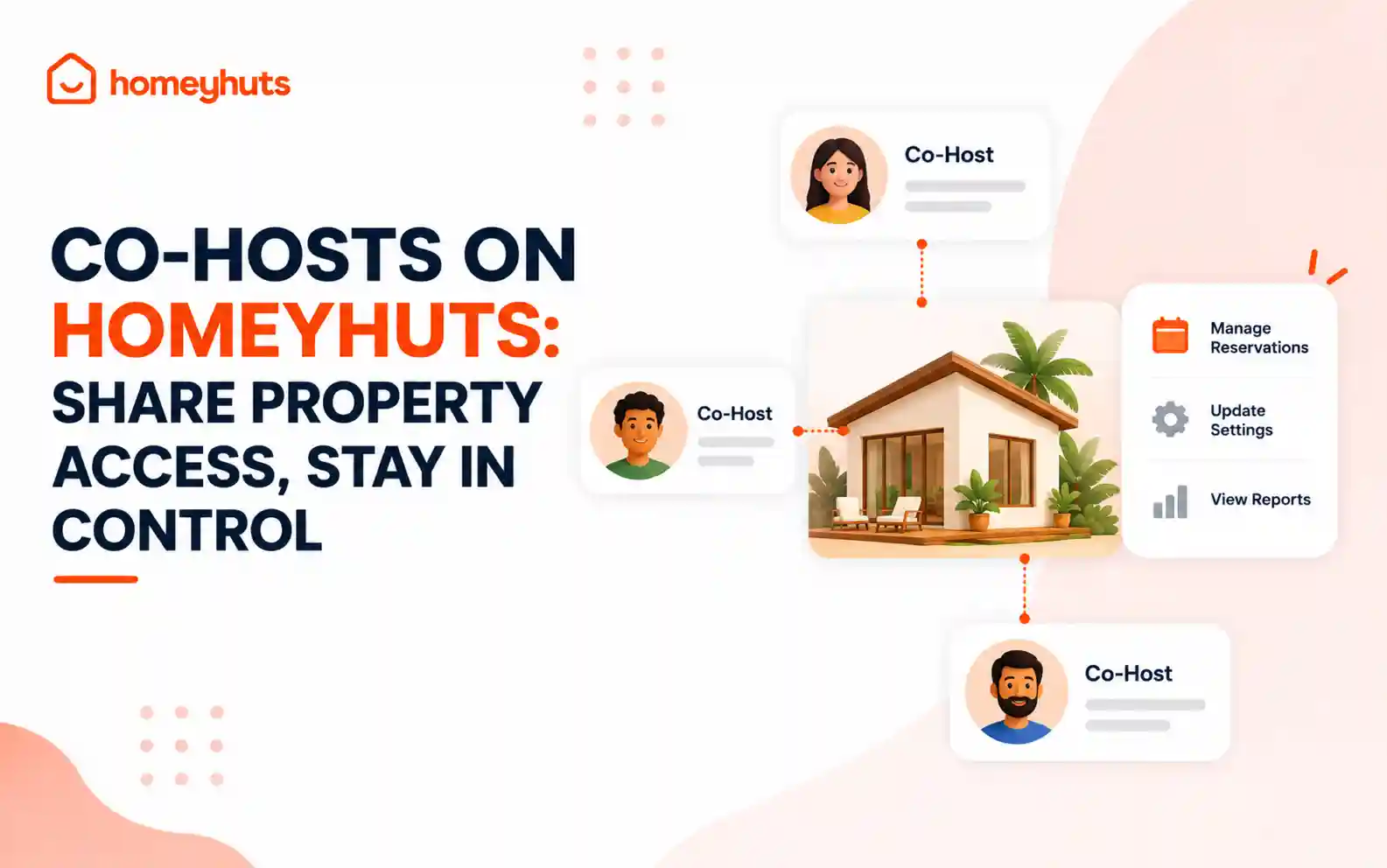
Co-Hosts on Homeyhuts: Share Property Access, Stay in Control
Invite up to 10 co-hosts to help manage your property on Homeyhuts. Choose exactly what each co-host can view or manage, customise their access at the listing level, and track their activity—all without sharing your login credentials.
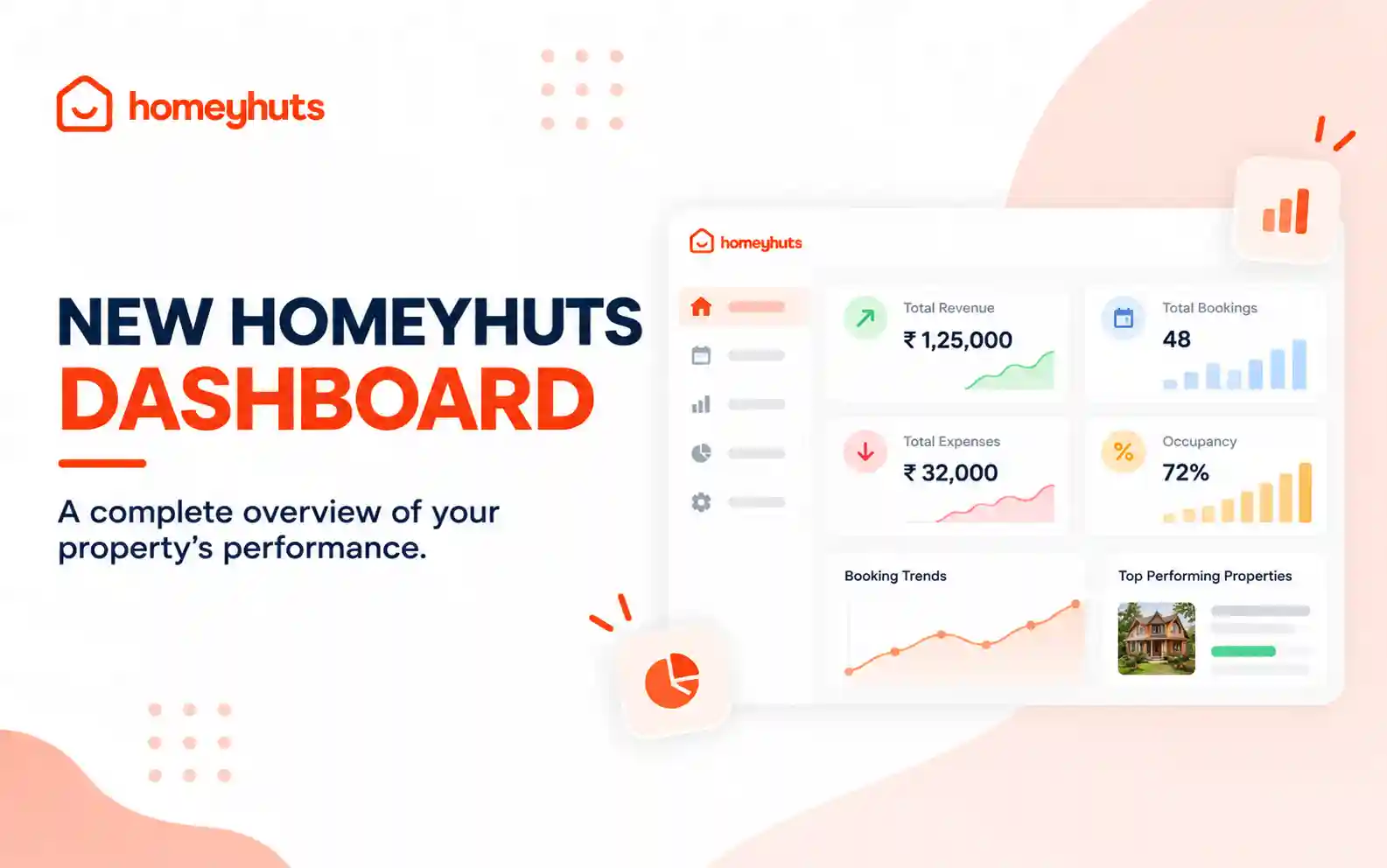
New Homeyhuts Dashboard: A Complete Overview of Your Property's Performance
Get a complete view of your property's financial performance, bookings, expenses, and occupancy with the new Homeyhuts Dashboard. Track revenue, analyze booking trends, compare property-wise performance, and monitor upcoming occupancy all in one place.
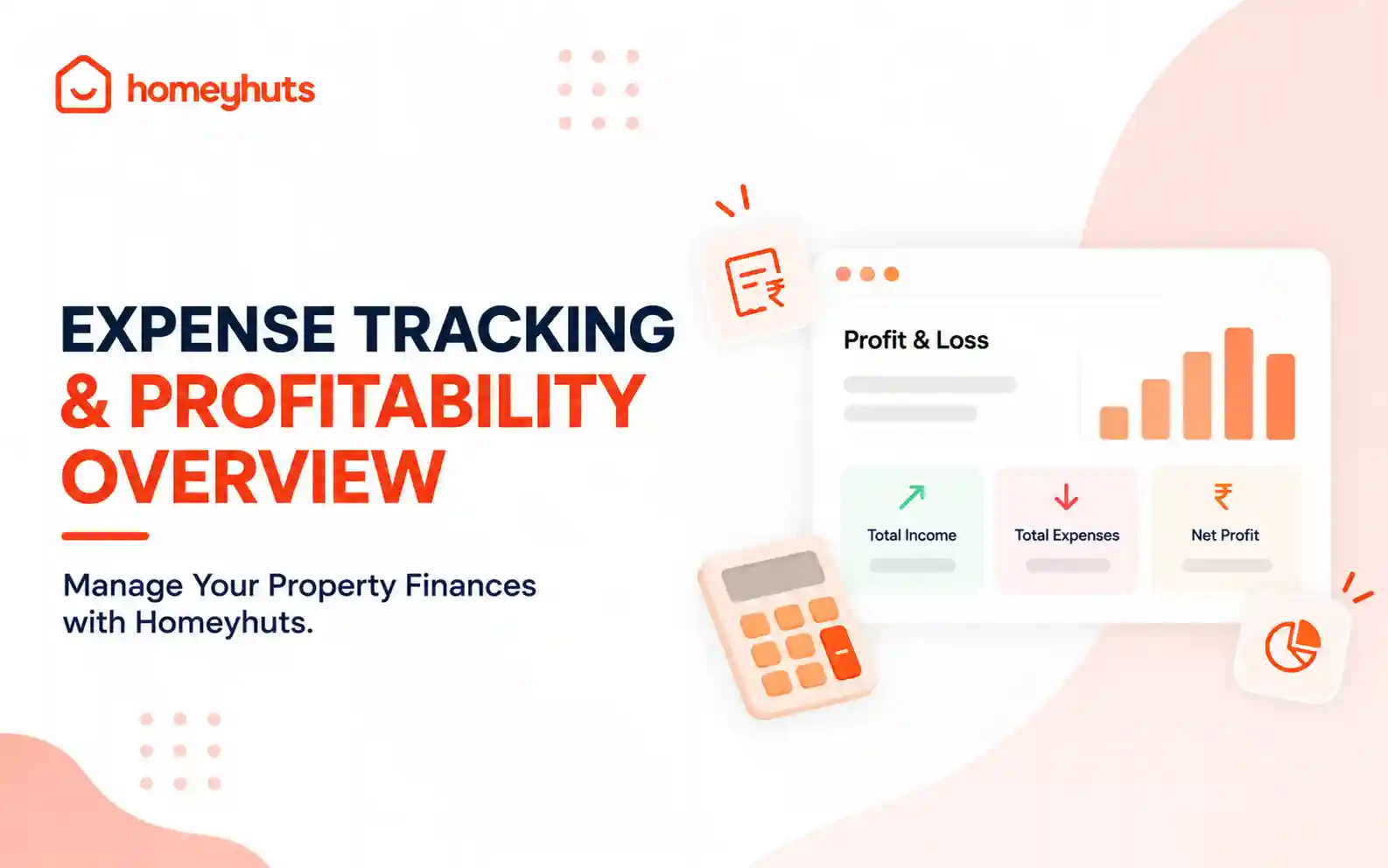
Expense Tracking & Profitability Overview: Manage Your Property Finances with Homeyhuts
Track and manage your property expenses with Homeyhuts. Record spending, organise expenses, and view your property's earnings, total expenses, and net income through a property-wise Profit & Loss (P&L) statement all in one place.