


Magic Cluster: Link Multiple Listings & Prevent Double Bookings
Learn how to use Magic Cluster to connect your entire property and room listings, automatically synchronize availability, and prevent double bookings across all your connected OTAs.
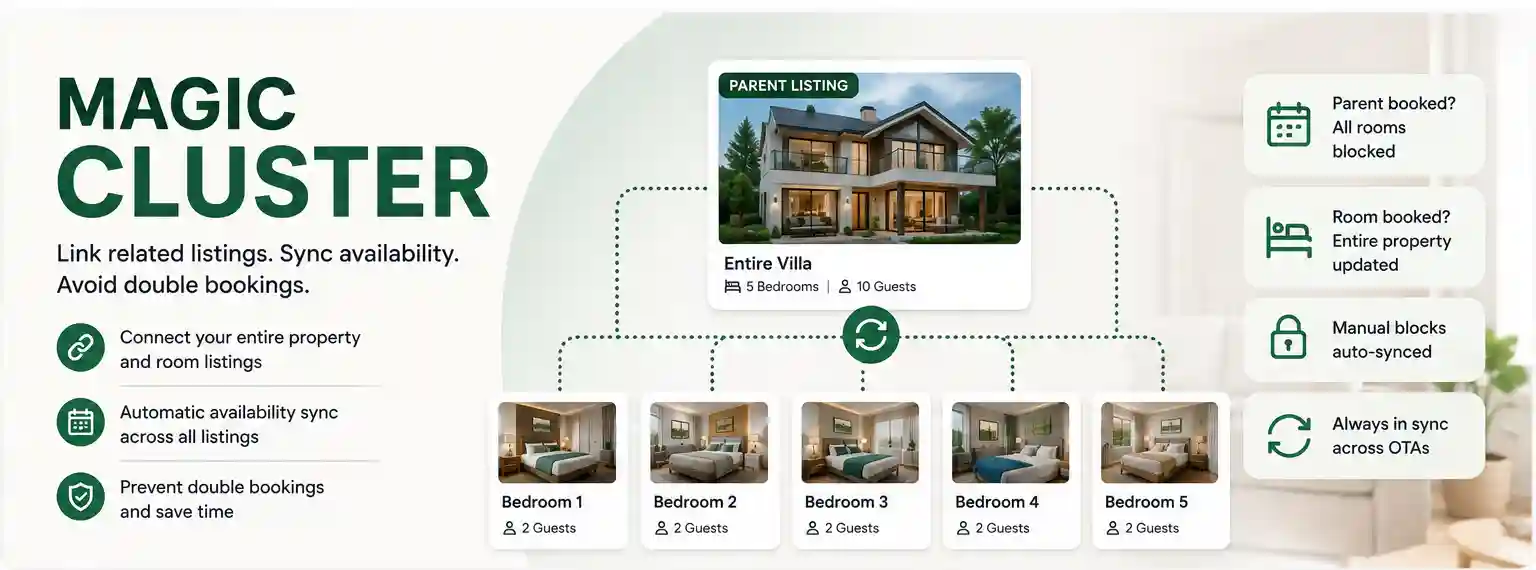
What is Magic Cluster?
If you list the same property in multiple ways—such as an entire villa as well as individual rooms—keeping availability updated manually can be time-consuming and may result in double bookings.
Magic Cluster allows you to link related listings together, so availability is automatically synchronized whenever a booking is received or dates are blocked. This ensures your inventory stays accurate across all connected listings without any manual updates.
Example
Suppose you have a 5-bedroom villa listed as:
- Entire 5 Bedroom Villa
- Bedroom 1
- Bedroom 2
- Bedroom 3
- Bedroom 4
- Bedroom 5
By creating a Magic Cluster, all these listings become connected.
- If the entire villa is booked, all individual room listings are automatically blocked.
- If any individual room is booked, the entire villa's availability is updated accordingly.
- Any manual blocks you add are also synchronized across all linked listings.
This helps prevent double bookings and keeps your inventory consistent across every connected OTA.
Creating a Magic Cluster
Follow these steps to create a new Magic Cluster.
Step 1: Open Magic Cluster
- Log in to your Homeyhuts account.
- Open Host Control Center.
- Go to Manage Property.
- Select Magic Cluster.
Step 2: Create a New Cluster
- Click New Cluster.
- Enter a name for your cluster.
- Search and select the listings you want to connect.
- The first listing is selected as the Parent Listing by default.
- If required, change the Parent Listing using the available selection option.
- Click Save Cluster.
Understanding Parent and Child Listings
Magic Cluster works using a Parent–Child relationship.
- The Parent Listing is usually your entire property.
- The Child Listings are the individual room listings connected to that property.
For Magic Cluster to work correctly, the total inventory of all Child Listings should match the inventory of the Parent Listing.
For example, if the Parent Listing is a 5-bedroom villa, the combined Child Listings should also represent 5 bedrooms.
If the inventory doesn't match, Homeyhuts won't allow the cluster to be created.
How Magic Cluster Works
Once your cluster is created, Homeyhuts automatically manages availability for all connected listings.
- When the Parent Listing receives a booking, all Child Listings are automatically blocked.
- When a Child Listing receives a booking, the Parent Listing is automatically updated.
- Manual calendar blocks are synchronized across all connected listings.
- Availability is automatically updated across your connected OTAs, helping you avoid conflicting bookings.
Managing Your Magic Cluster
After creating a cluster, you can manage it anytime.
You can:
- Edit the cluster name.
- Add or remove Child Listings.
- Change the Parent Listing by recreating the cluster if required.
- Delete a cluster when it is no longer needed.
- Enable Entire Place Mode if you want to temporarily sell only the entire property instead of individual rooms.
Best Practices
- Use Magic Cluster only for listings that represent the same property.
- Verify that your Parent and Child inventory matches before creating the cluster.
- Review your cluster whenever you add new room listings or change your property configuration.
- Keep your OTAs connected so inventory updates are synchronized automatically.
Was this article helpful?
Related in Guides & FAQs
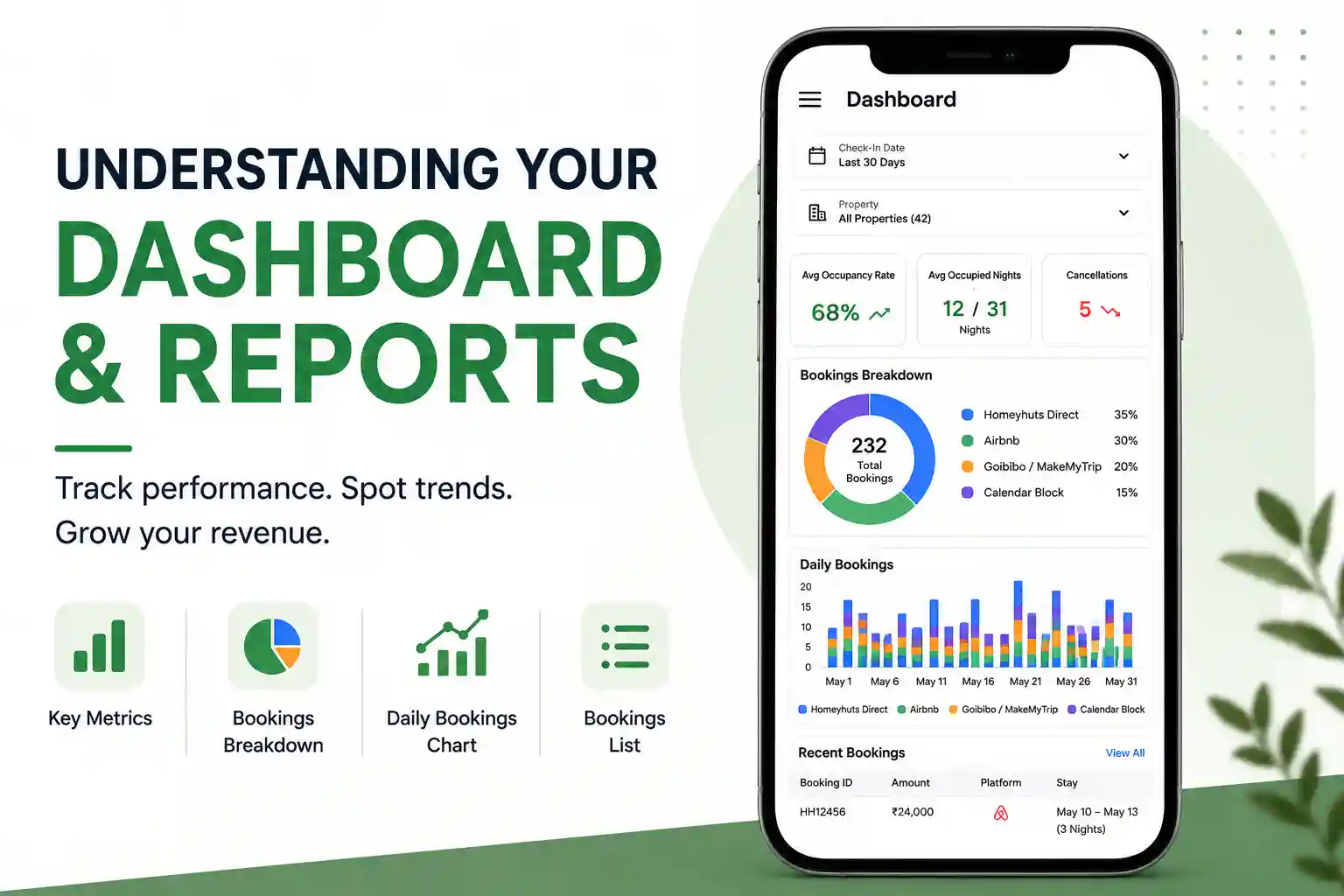
Understanding Your Dashboard and Reports
Learn how to use the Homeyhuts Dashboard to monitor bookings, occupancy, revenue, cancellations, and booking sources. This guide explains every section of the dashboard so you can easily track your property's performance and make informed decisions.
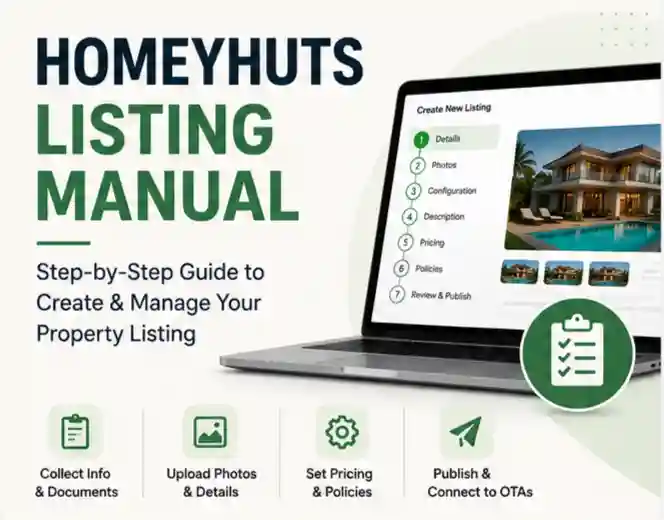
Homeyhuts Listing Manual: Create & Publish Your Propert
Follow this step-by-step guide to create a complete property listing on Homeyhuts. Learn how to add property details, upload photos, configure pricing and policies, publish your listing, and connect it with OTAs for seamless booking management.

How to Start an Airbnb or Homestay Business in India Without Owning a Property
Learn how to start an Airbnb or homestay business in India without owning property. Understand regulations, business models, platforms like Homeyhuts and essential skills. Ideal for aspiring hosts under the Incredible India scheme