

Using Filters in the Reservations Tab
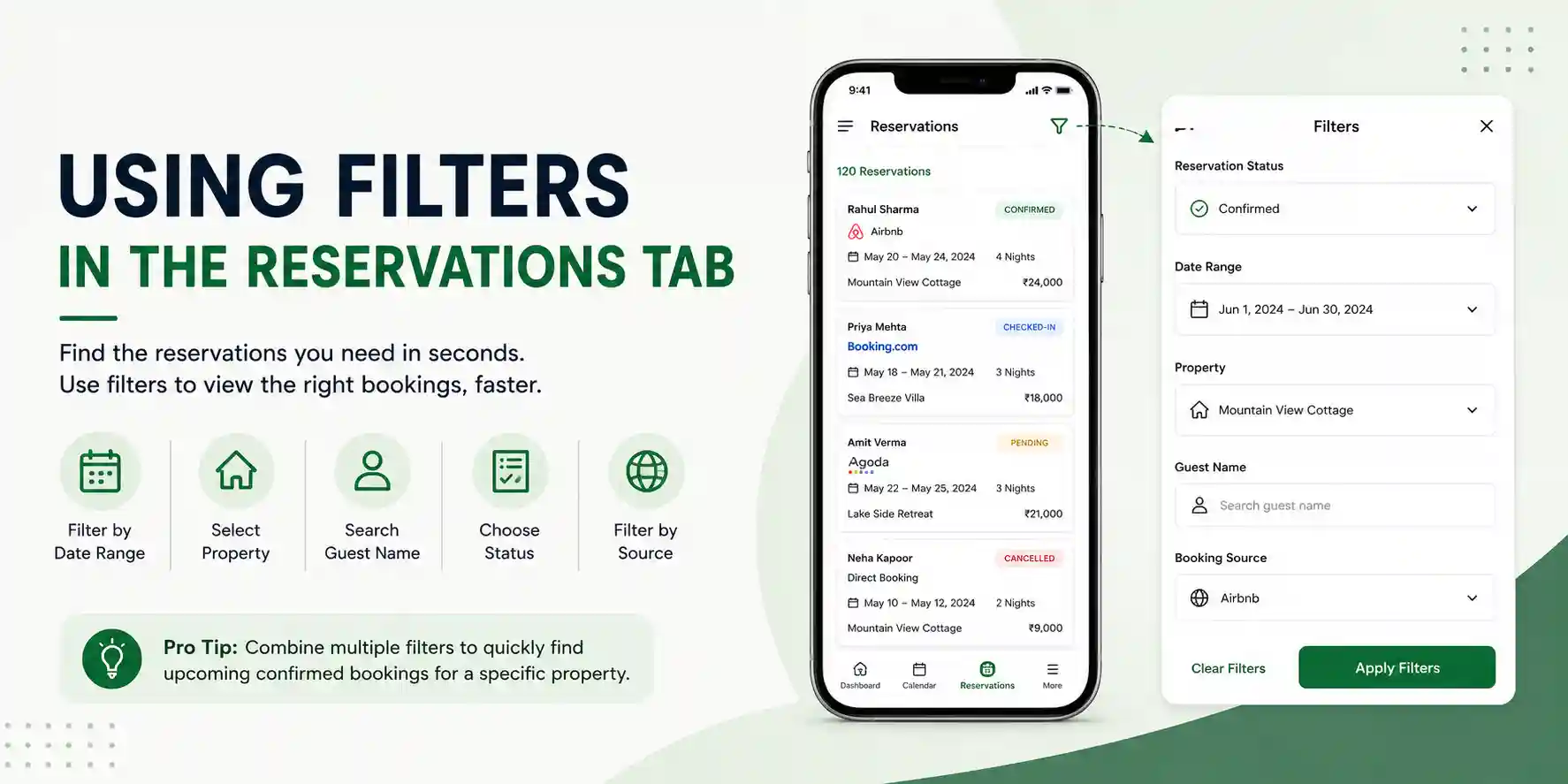
Learn how to use filters in the Reservations tab to quickly find bookings by status, date, property, guest, or booking source. Combining filters helps you locate reservations faster and manage them more efficiently.
Using Filters in the Reservations Tab
Filters make it easy to find the reservations you need without scrolling through your entire booking list. Whether you're looking for today's check-ins, a specific guest, or bookings from a particular platform, filters help you locate information quickly and save time.
Why Use Filters?
Using filters allows you to:
- Find reservations quickly.
- Track upcoming check-ins and check-outs.
- Review past bookings.
- View reservations for a specific property.
- Save time by narrowing down your booking list.
How to Use Filters
Follow these steps to filter your reservations:
Step 1: Open the Homeyhuts App
Launch the Homeyhuts app and log in to your account.
Step 2: Open the Reservations Tab
From the main dashboard, tap Reservations.
Step 3: Open Filters
Tap the Filter icon on the Reservations screen. This will open the filter panel.
Step 4: Select Your Filters
Choose one or more filters based on what you're looking for.
Step 5: Apply Filters
Tap Apply Filters. Your reservation list will refresh and display only the bookings that match your selected filters.
Available Filter Options
Reservation Status
Filter reservations based on their current status.
Available statuses include:
- Confirmed
- Pending
- Checked-In
- Checked-Out
- Cancelled
Example: Select Confirmed to view only confirmed reservations.
Date Range
Filter bookings by a specific time period.
Available options include:
- Today
- Tomorrow
- This Week
- This Month
- Custom Date Range
Example: Choose a custom date range to view reservations with check-ins between June 1 and June 30.
Property
If you manage multiple properties, use this filter to display reservations for a specific property.
Example: Select Mountain View Cottage to view only bookings for that property.
Guest Name
Search for reservations by entering the guest's name.
Example: Search for Rahul Sharma to locate all bookings under that guest.
Booking Source
View reservations from a specific booking platform.
Available sources include:
- Airbnb
- Booking.com
- Agoda
- Direct Booking
- Homeyhuts Website
Example: Select Airbnb to view only Airbnb reservations.
Clearing Filters
To return to your complete reservation list:
- Open the Filter panel.
- Tap Clear Filters or Reset Filters.
- Your complete list of reservations will be displayed.
Pro Tip
You can combine multiple filters to narrow down your search even further. For example, filter by Property, Reservation Status, and Date Range at the same time to quickly find upcoming confirmed bookings for a specific property.